SkillBall
Visit skill-ball.comOverview
SkillBall helps young football players understand their game and improve faster. Many players never see their own matches and don't know what to work on.
Players upload their match video, and SkillBall finds their moments in it and turns them into highlights, match analysis and a player profile they can share with coaches and scouts.
My contribution
I designed SkillBall from the first product screens to the design system behind them and the marketing website around them.
Product
- Designed the web app for desktop and phone.
- Worked out the flows from uploading a match to sharing a highlight.
Design system
- Set up the tokens as Figma variables.
- Built every component in a light and a dark mode.
Marketing site
- Planned the page structure.
- Designed the pages in light and dark, for desktop and phone.
The product
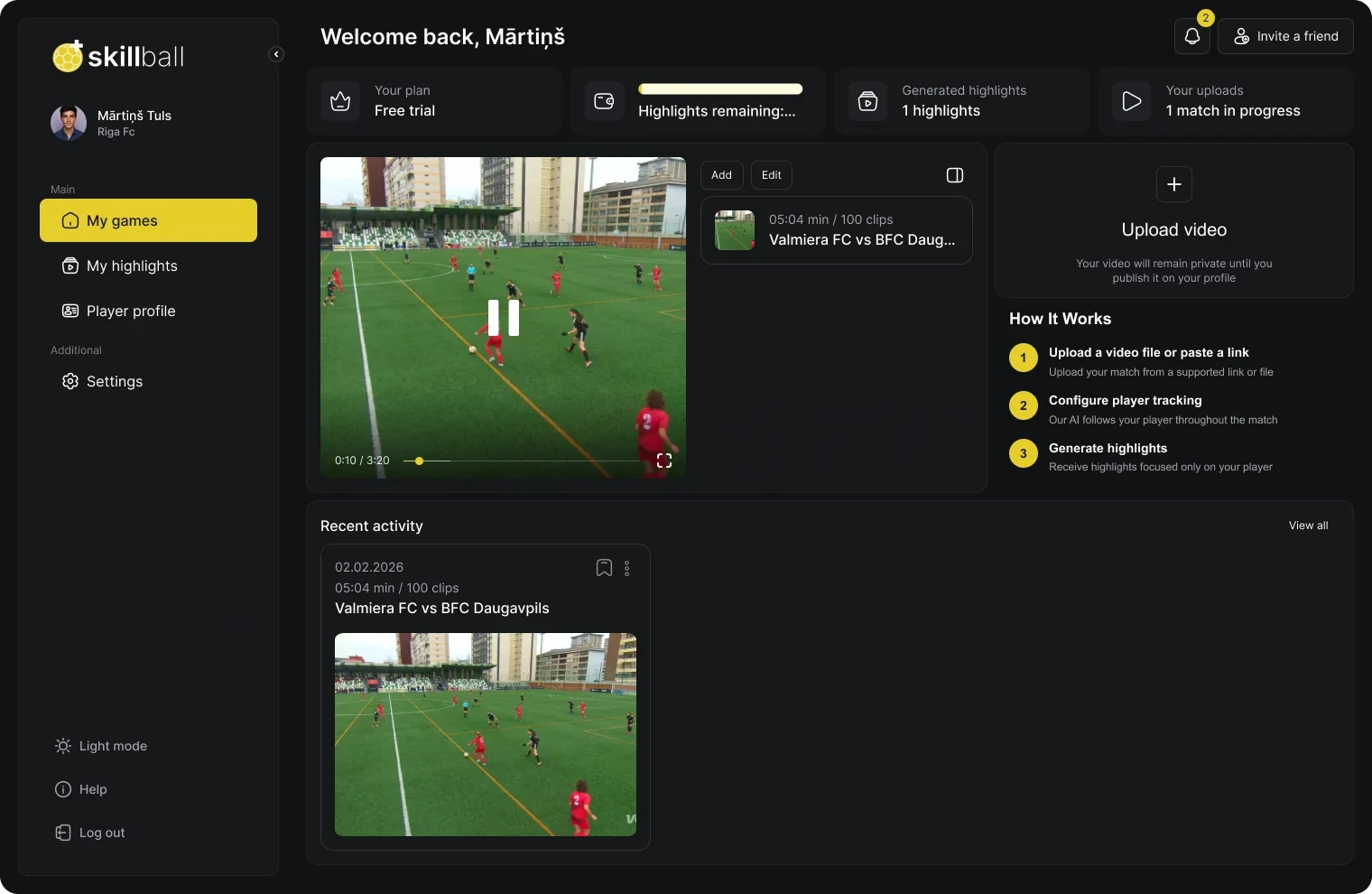
SkillBall is a web app. After logging in, the player lands on My games: their plan, how many highlights they have left, the last match and a short guide to getting started.
From match to highlight
Getting from a full match to a highlight worth sharing takes five stages. Each one happens in a single window, with a step-by-step guide on the side the first time.
-
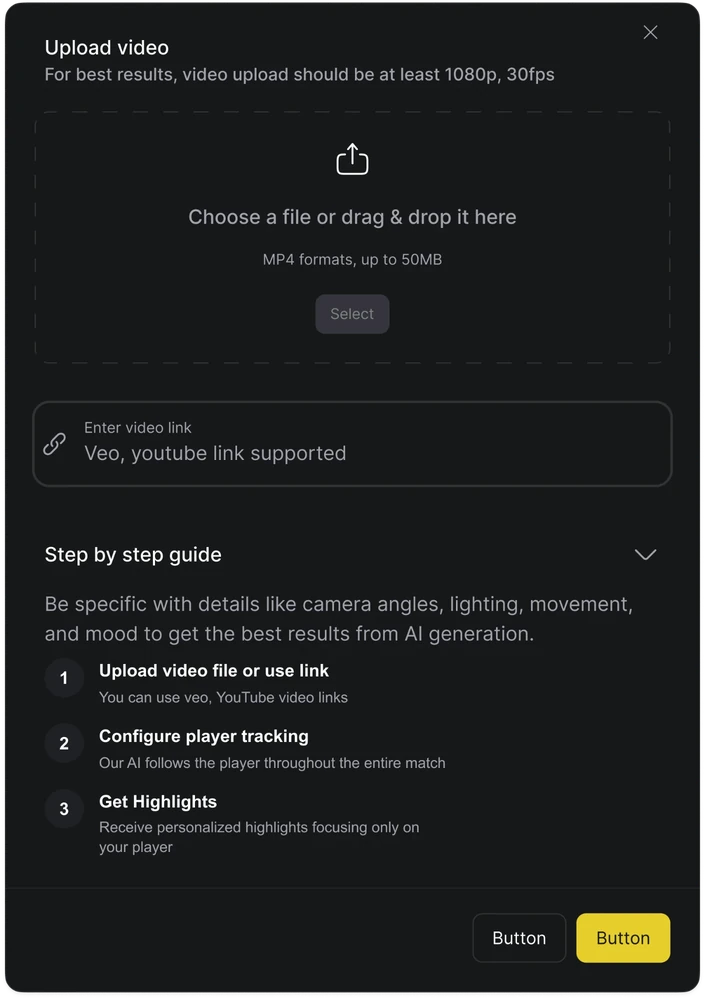
Upload the match
Players can upload a match by selecting or dragging and dropping an MP4 file (up to 50 MB), or by pasting a Veo or YouTube link. A guide below the upload area outlines the three steps: upload the video, configure player tracking, and generate highlights.
-
Tell it who to follow
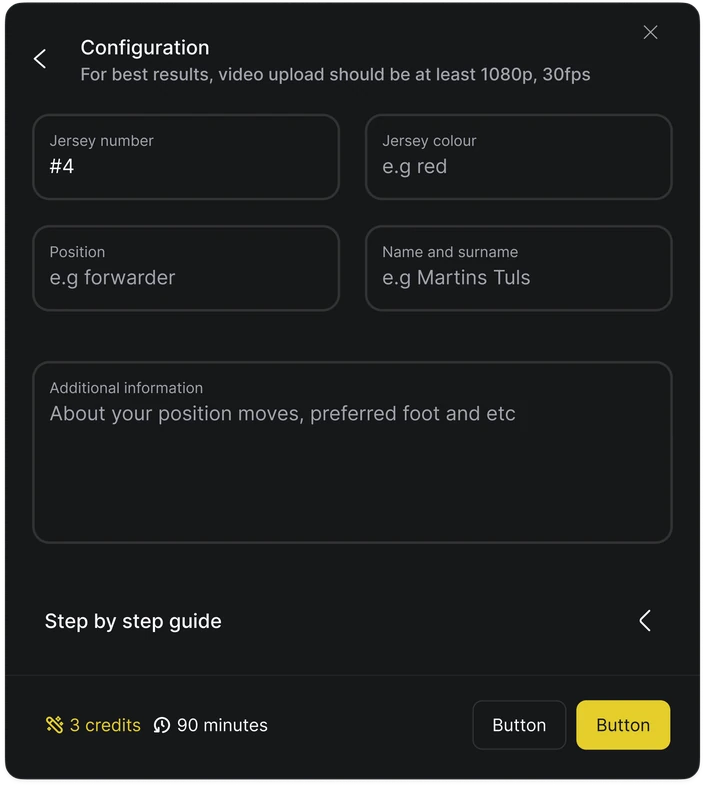
A match has twenty-two players, so a configuration window asks how to recognise this one: jersey number and colour, position and name. These can be filled in from the player profile or typed in by the player. The more it knows, the better it can follow them through the whole game. Before continuing, it shows the credits the upload will use and the match length.
-
Waiting time
SkillBall now works through the whole match. The player does not have to keep the page open: when the highlights are ready, they are told in two ways.
- An email in Gmail
- A notification in the web app
-
Make it yours
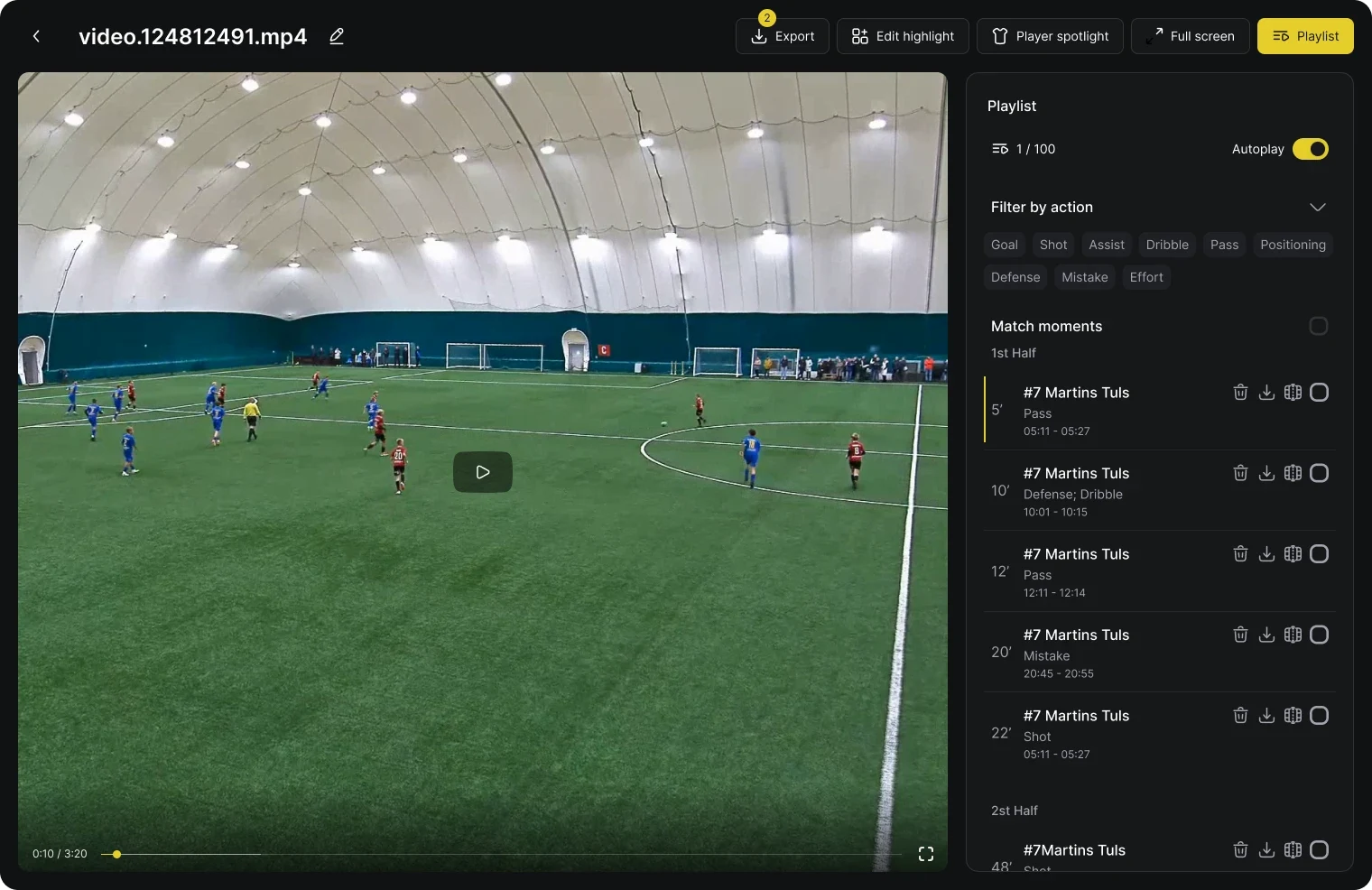
The highlight editor keeps the video in front and the tools beside it. The playlist lists and filters the moments, Edit highlight changes the shape and the transitions, and Player spotlight makes the player stand out. Every change shows in the video straight away.
Playlist
 1
2
3
4
5
- 1ToolbarSwitches between the editor's tools: Export, Edit highlight, Player spotlight, Full screen and Playlist. The number on Export shows highlights waiting to be downloaded.
- 2PreviewThe highlight plays here with every change applied, so the player sees the result before exporting.
- 3Playlist and autoplayWhich moment is playing out of all of them, and autoplay to run straight through.
- 4Filter by actionShow only the moments of one kind: goal, shot, assist, dribble, pass, positioning, defense, mistake or effort.
- 5Match momentsEvery moment by half, with the minute, the action and the time in the video. Each one can be deleted, downloaded, edited or selected to keep.
Edit highlight
 1
2
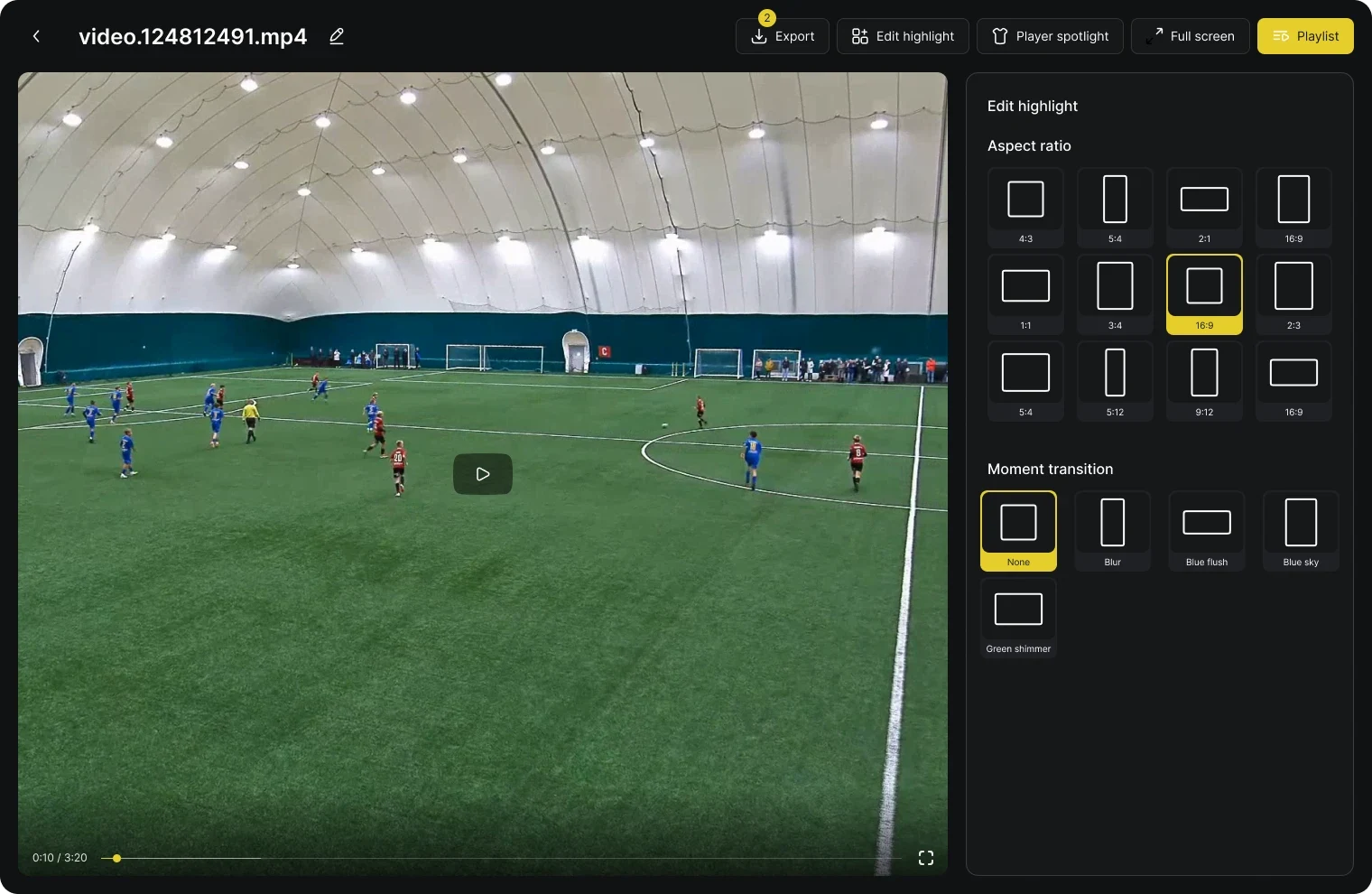
- 1Aspect ratioTwelve shapes, from wide 16:9 for YouTube to tall 9:12 for stories, so one highlight fits every platform.
- 2Moment transitionHow one moment turns into the next: None, Blur, Blue flush, Blue sky or Green shimmer.
Player spotlight
 1
2
3
4
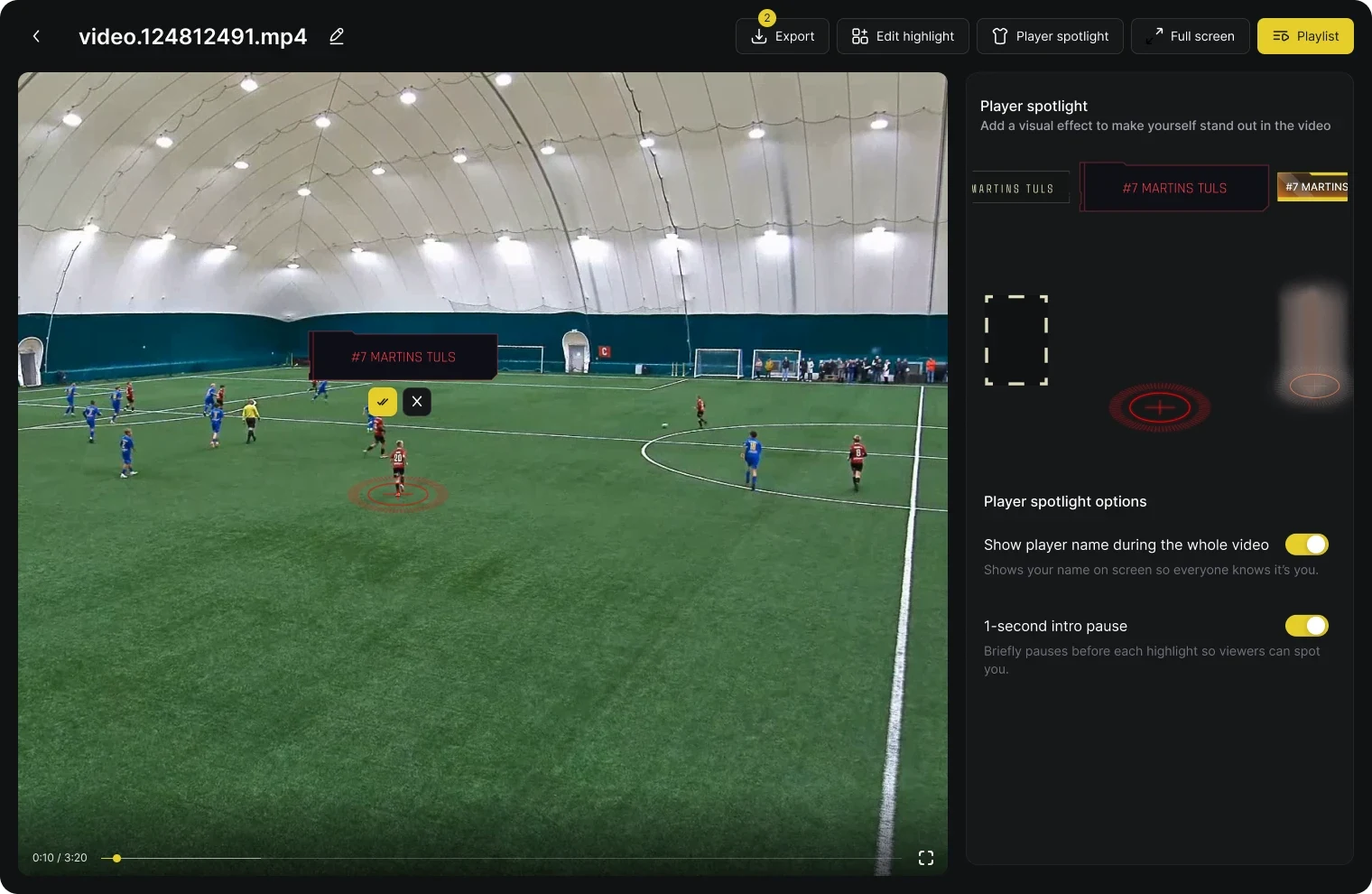
- 1Name tag and ring in the videoA name tag above the player, with buttons to confirm or cancel it, and a ring at their feet, so they are easy to find in a crowded frame.
- 2Name tag stylesA row of tag designs to swipe through, each with the player's number and name.
- 3Marker stylesA frame, a ring or a glow to mark the player.
- 4OptionsShow the name during the whole video, and a 1-second intro pause before each moment so viewers can spot the player.
-
Export and share
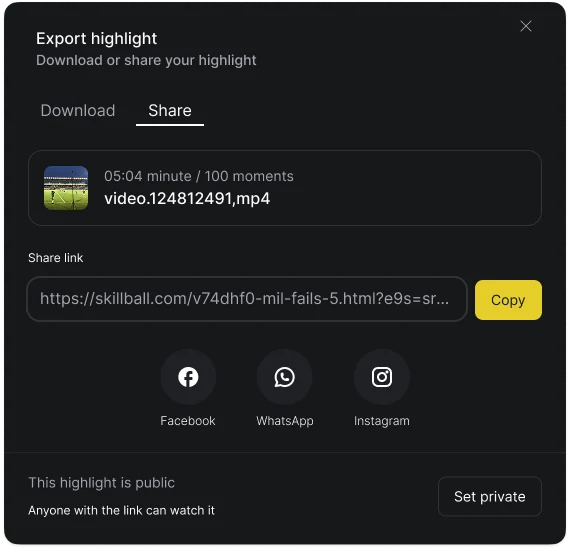
The finished highlight can be downloaded or shared straight away: copy a link or send it to social media. The window says whether the highlight is public, so the player knows who can watch it.
-
Build the profile
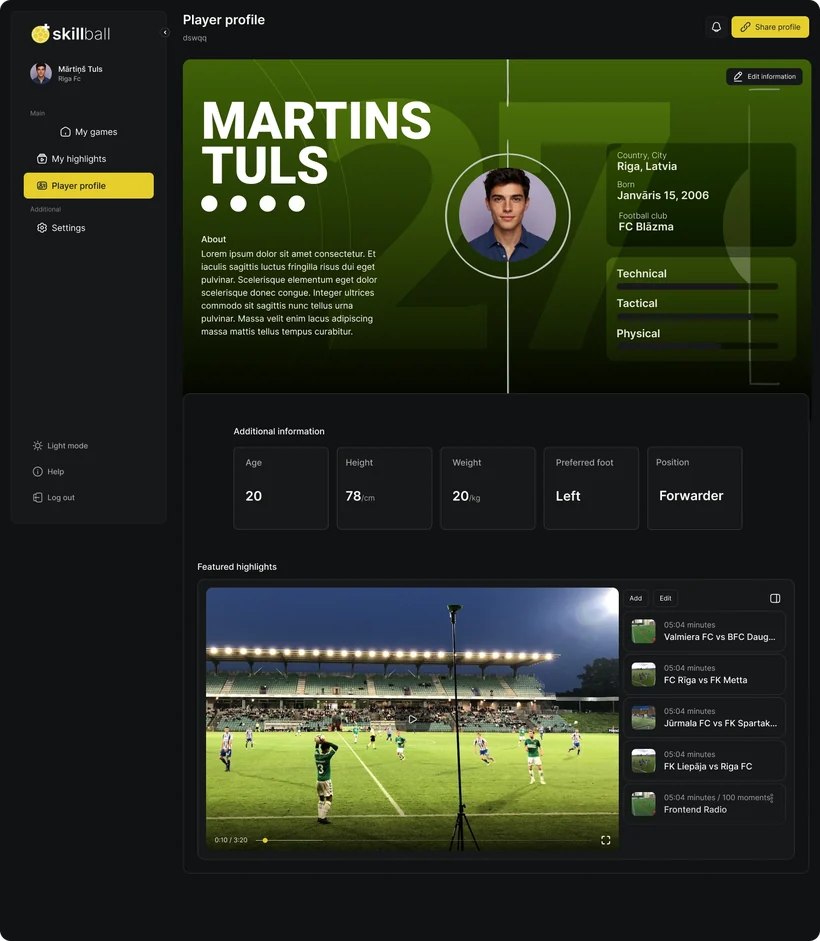
The best highlights go on the player profile, the page a player sends to coaches and scouts. It shows who the player is, their skill ratings and details like position and preferred foot, with the featured highlights underneath.
The main screens
Outside the editor, three screens hold everything else. My games is where a player starts, My highlights keeps every highlight they have made, and the Player profile is what coaches and scouts see.
My games
 1
2
3
4
5
- 1Plan at a glanceThe plan, how many highlights are left, how many have been made and which uploads are still in progress.
- 2Latest matchThe newest highlight plays straight away, with its clips beside it and Add and Edit to change them.
- 3Upload videoThe main action, always in view. A note says the video stays private until the player publishes it on the profile.
- 4How it worksThree steps for new players: upload a file or link, configure player tracking, generate highlights.
- 5Recent activityThe latest highlights as cards, with View all to open the full list.
My highlights
 1
2
3
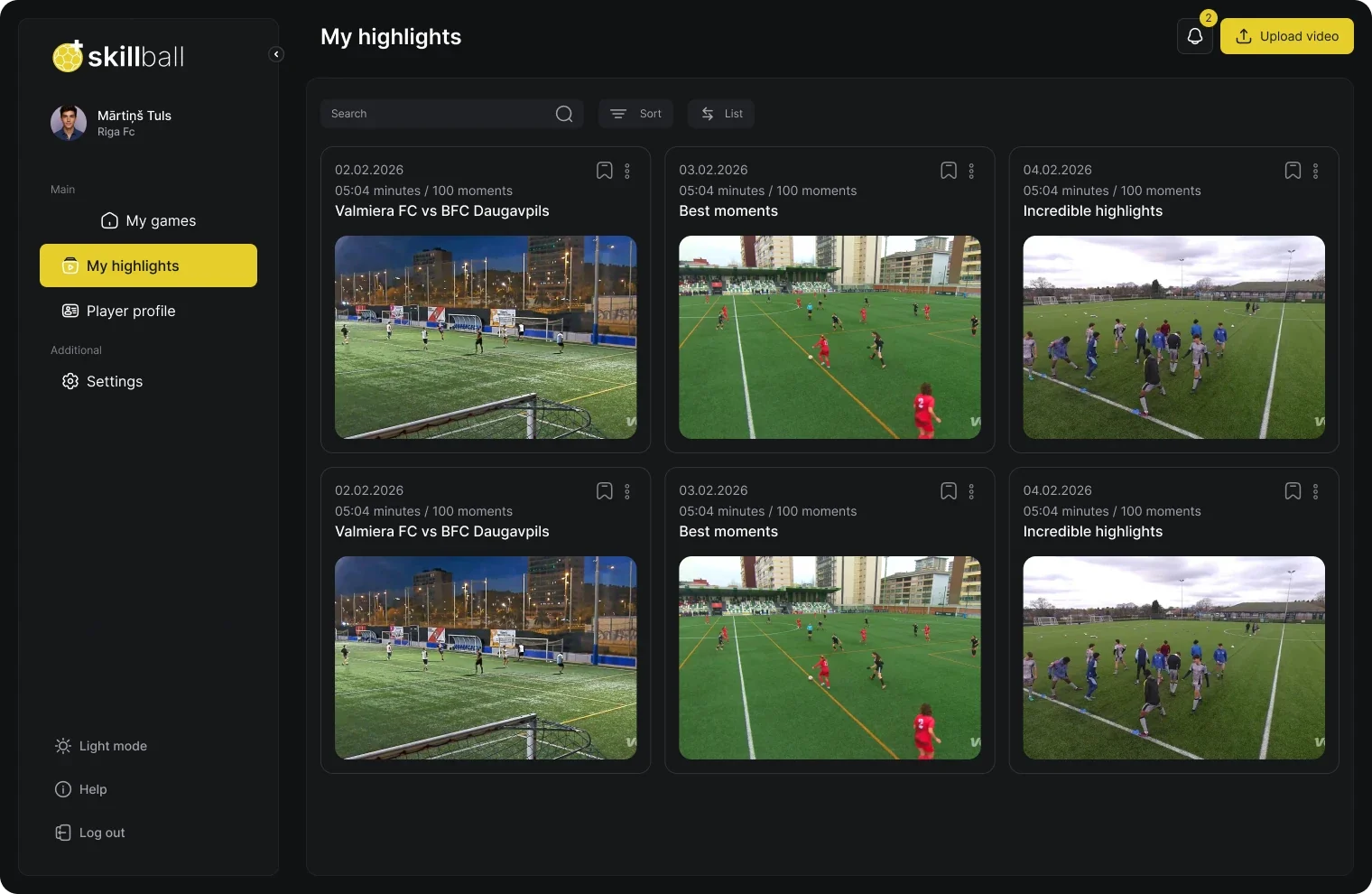
- 1Search, sort and viewFind a highlight by name, sort the list, or switch between cards and a list.
- 2HighlightThe date, the length and number of moments, the title and a thumbnail. A bookmark saves it to favourites, and the menu holds the rest.
- 3Notifications and uploadThe bell counts new notifications, and Upload video stays in the corner of every page.
Player profile
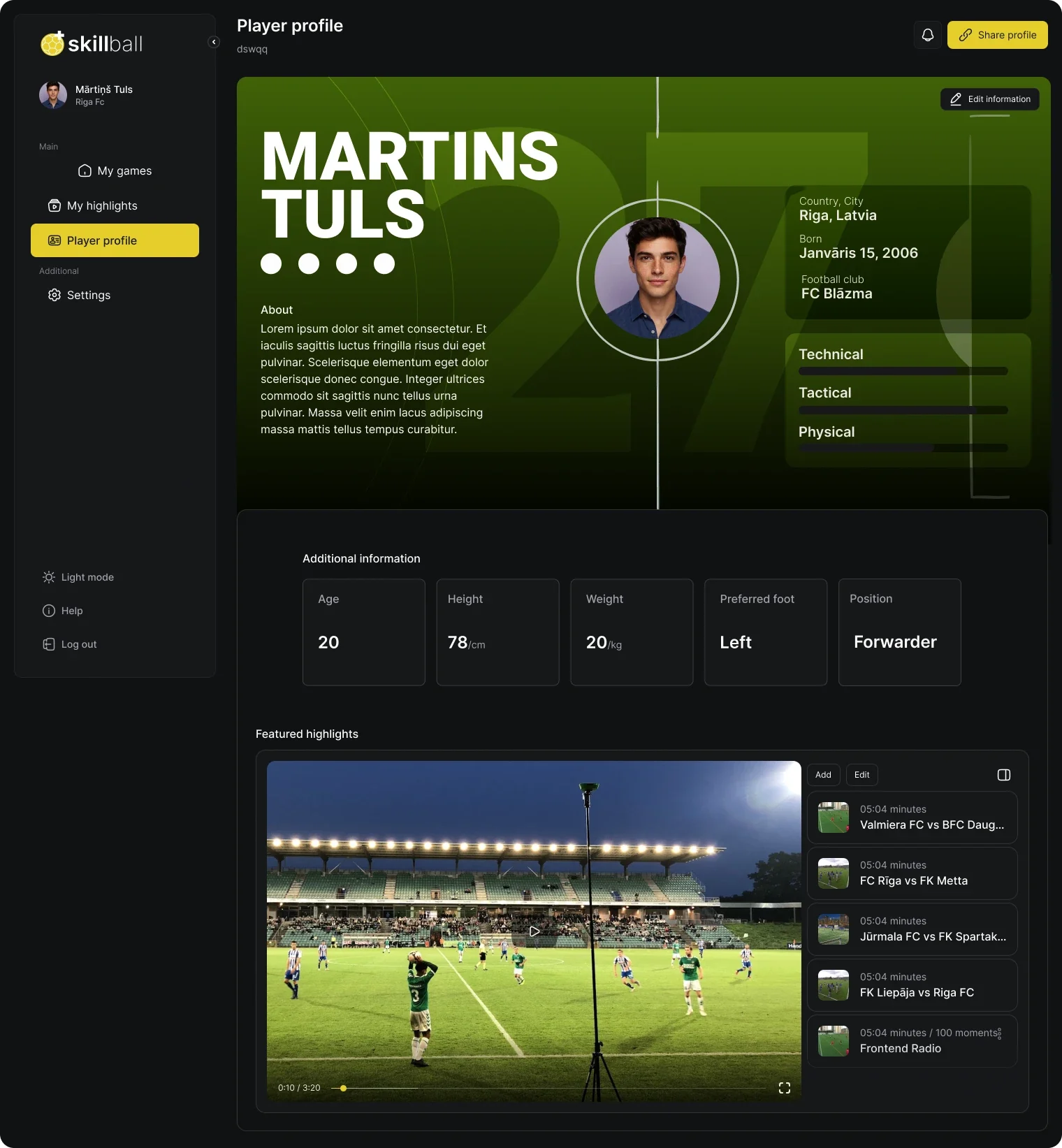 1
2
3
4
5
6
- 1Name and aboutThe player’s name in large type and a short about text in their own words.
- 2Where they playCountry and city, birth date and football club.
- 3Skill barsTechnical, tactical and physical ratings, so a scout gets the picture in seconds.
- 4Additional informationAge, height, weight, preferred foot and position.
- 5Featured highlightsThe highlights the player chose to show, in a player with the list beside it, and Add and Edit to change them.
- 6Share profileOne button copies a link to the profile to send to coaches and scouts.
Design system
The app and the website share one design system. It gives designers and developers one set of colours, sizes and components, so every new screen is built from the same parts.
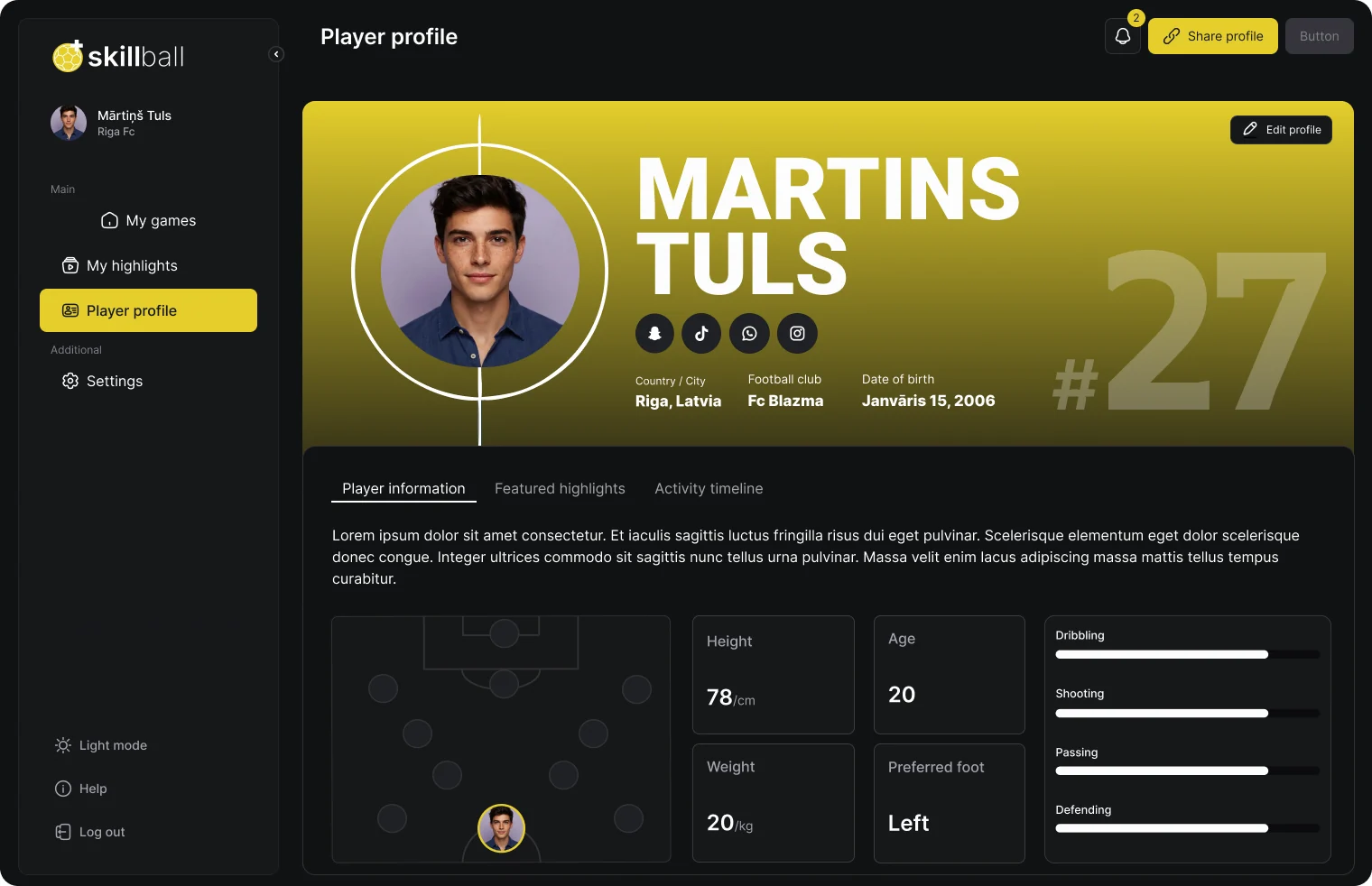
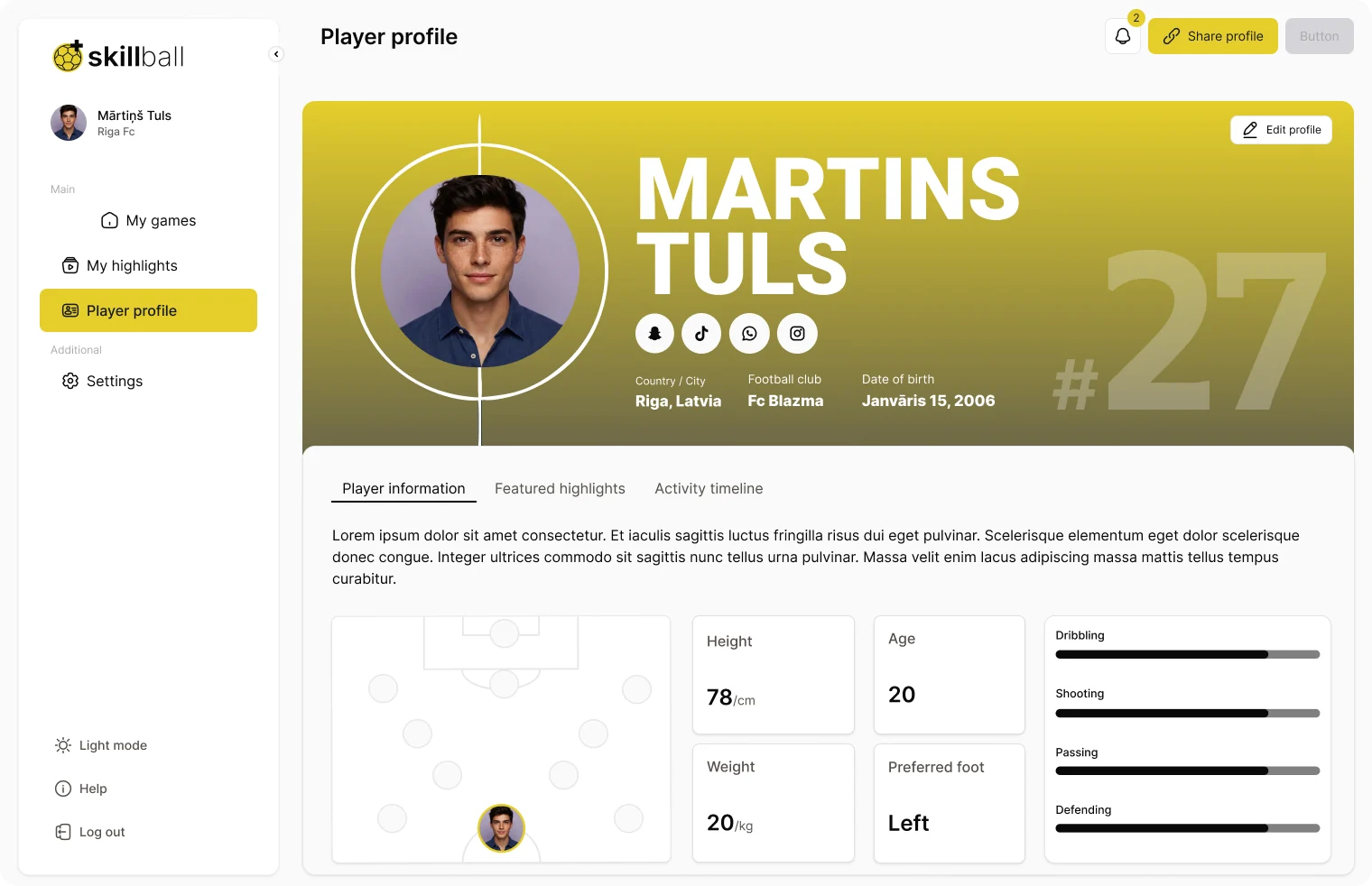
Every value is a Figma variable with two modes, light and dark, so a screen switches between them without being drawn twice.
- 27components
- 5component groups
- 2modes, light and dark
Foundations
Everything is built on tokens: named values that replace loose colours and numbers. They come in three levels, and each level only points to the one below it. Change a primitive, and every semantic token and component that uses it follows.
Dimensions
Spacing and corner radius, so gaps and rounding are the same everywhere.
Spacing
- unit-4
- unit-8
- unit-12
- unit-16
- unit-24
- unit-32
- unit-48
- unit-64
- unit-96
- unit-128
Corner radius
- small8
- medium12
- large14
- full50%
Primitives
The raw values: six colour scales of ten shades each, shown here in dark mode, and the type settings.
Colour 6 scales of 10 shades
- Primary
- Default
- Secondary
- Success
- Warning
- Danger
Type one family, five weights, 16 text styles
Inter, five weights
- AaRegular400
- AaMedium500
- AaSemiBold600
- AaBold700
- AaExtraBold800
Text styles
- Heading 1Skillball36 px
- Heading 2Skillball24 px
- Heading 3Skillball20 px
- Heading 4Skillball16 px
- Body baseSkillball16 px
- Body smSkillball14 px
- Body xsSkillball12 px
- Link, Button, Text fieldSkillball16 / 14 px
- Website headingsSkillballBowlby One SC
Semantic tokens
Names by purpose. Each one points to a primitive, and components only ever use these, so a colour can change in one place, and the dark mode swaps them all at once.
Colour a selection, dark mode
- primaryprimary/400Main buttons and the selected item
- primary-foregroundbackgroundText on yellow
- background#101213The page
- content1default/50Cards and panels
- content2default/200Raised surfaces and inputs
- foregrounddefault/900Text
- defaultdefault/200Neutral buttons and chips
- success#1B7844Confirmations
- warning#C4841DWarnings
- danger#FF4D50Errors and deleting
Other values fills, overlays and states
- *-flatcolour at 20%
- overlayblack at 50%
- disabledOpacity0.4
- *-foregroundtext on each colour
Components
The system has 27 components in five groups. Each component has its own page in the file, with every variant, size and colour laid out in a grid, once in light and once in dark.
| Group | Components |
|---|---|
| LayoutWhere things sit |
|
| ActionsWhat players press and fill in |
|
| ContentWhat players look at |
|
| FeedbackWhat the app says back |
|
| AccountSigning in and paying |
|
Buttons three variants, three sizes, seven colours
The button comes in solid, bordered and light variants, with or without an icon, in three sizes. Below is the primary button, drawn from the tokens above.
- Upload videoSolid
- Upload videoBordered
- Upload videoLight
- With icon
- Upload videoSmall
- Upload videoDisabled
Light and dark
Because the screens use tokens and not fixed colours, switching the mode turns a whole screen dark. Drag the handle to compare the same screen in both modes.
Marketing site
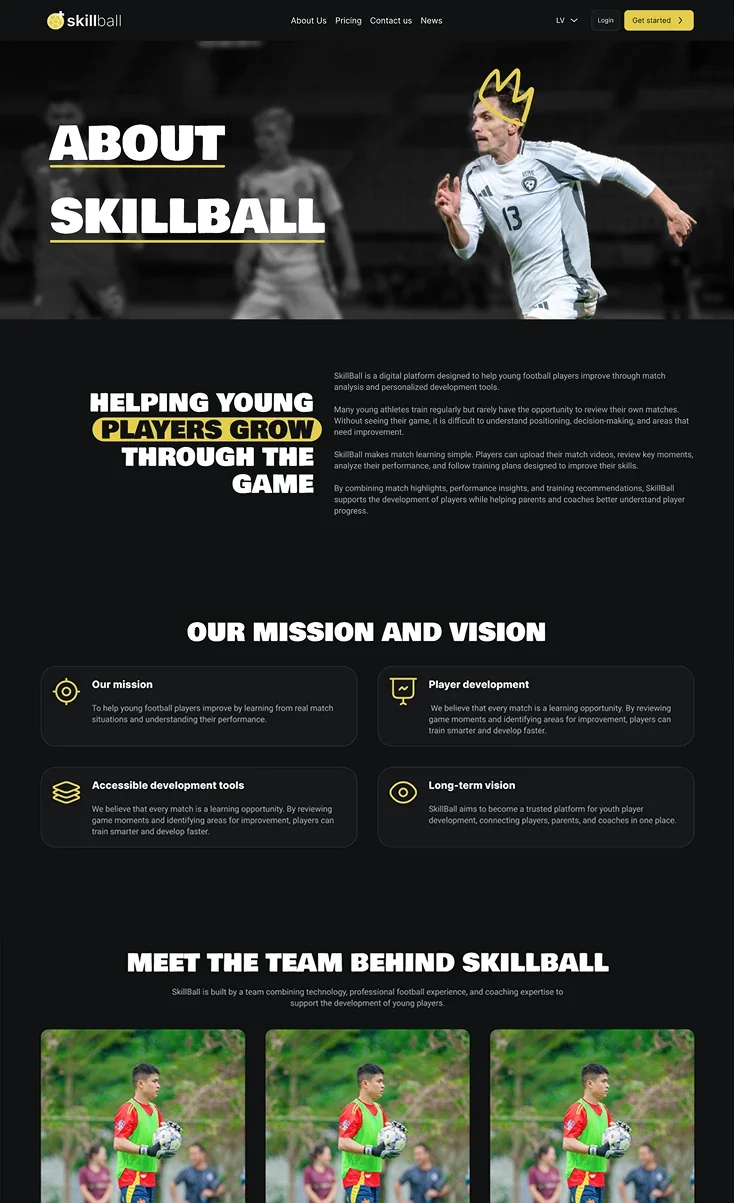
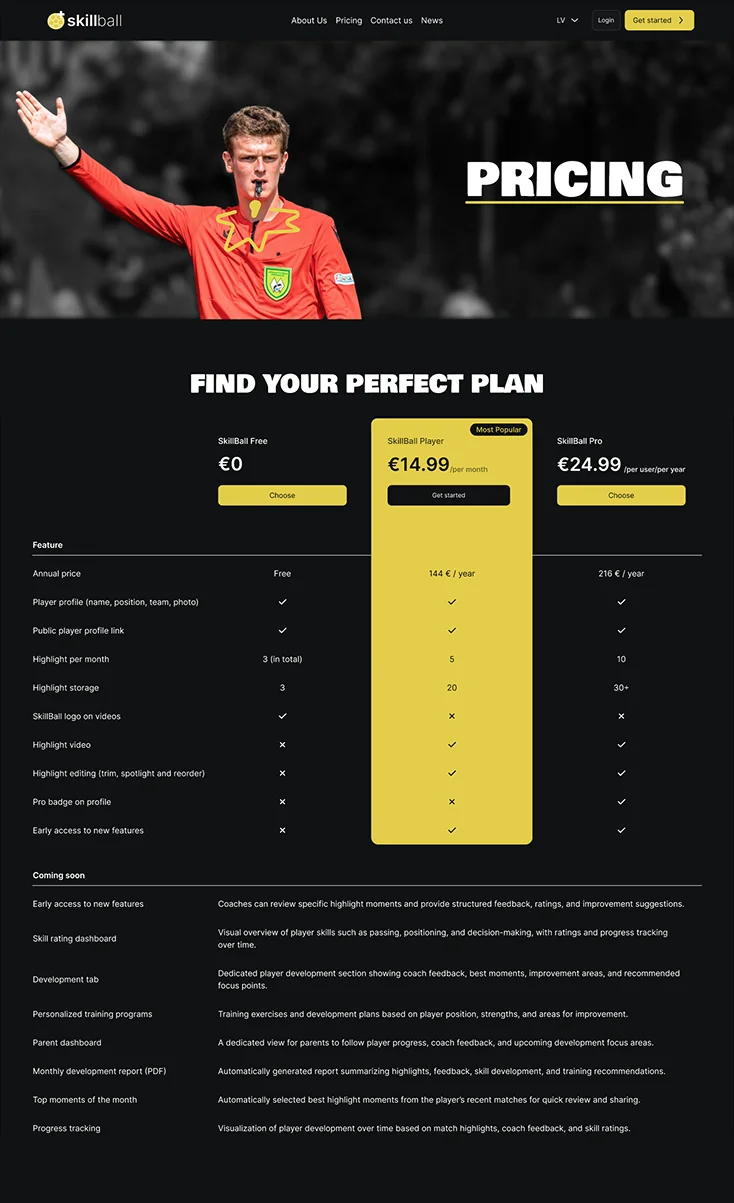
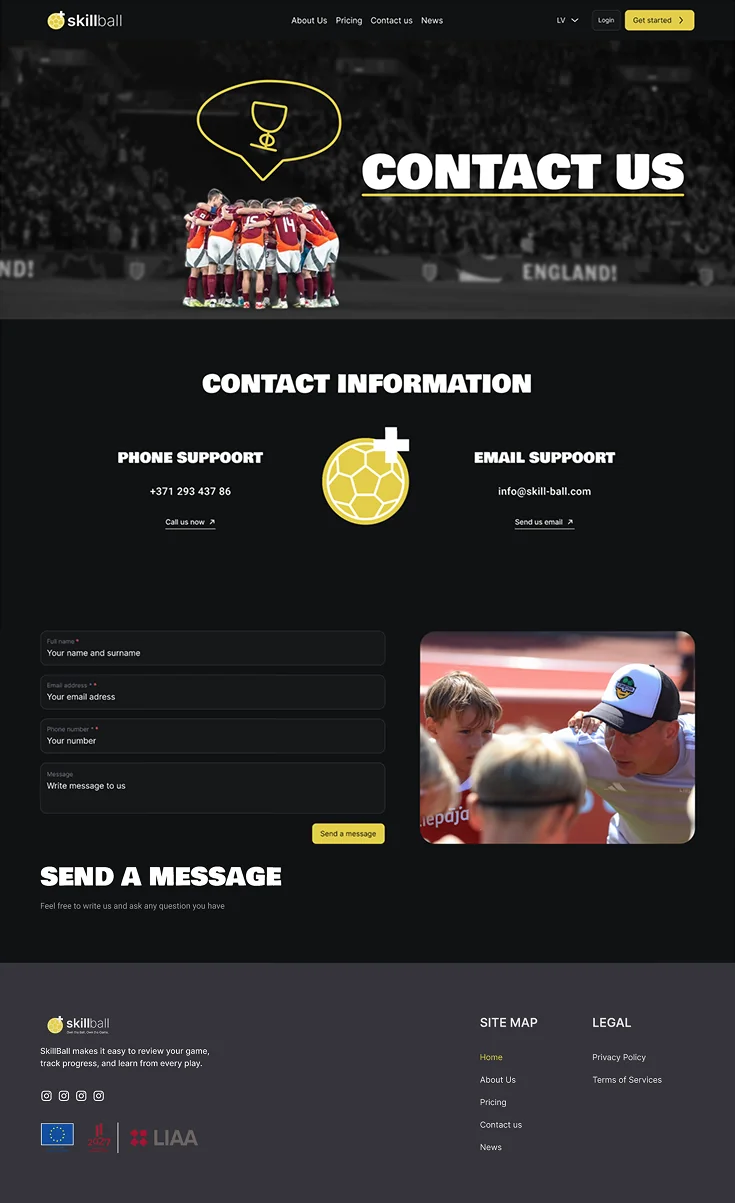
The website explains SkillBall to players and parents and sends them to sign up. It is in English and Latvian, and has five main pages and the legal pages.
About us
- Mission and vision
- The team
- Contact form
Pricing
- Plans
- Feature comparison
- FAQ
News
- Article cards
- Article page
Contact
- Phone and e-mail support
- Contact form
Legal pages
- Privacy policy
- Terms of use
- Cookie policy
- Data processing
- Security and GDPR
Every page is in English and Latvian.
The home page
The home page tells the whole story in order, from the promise to the contact form.
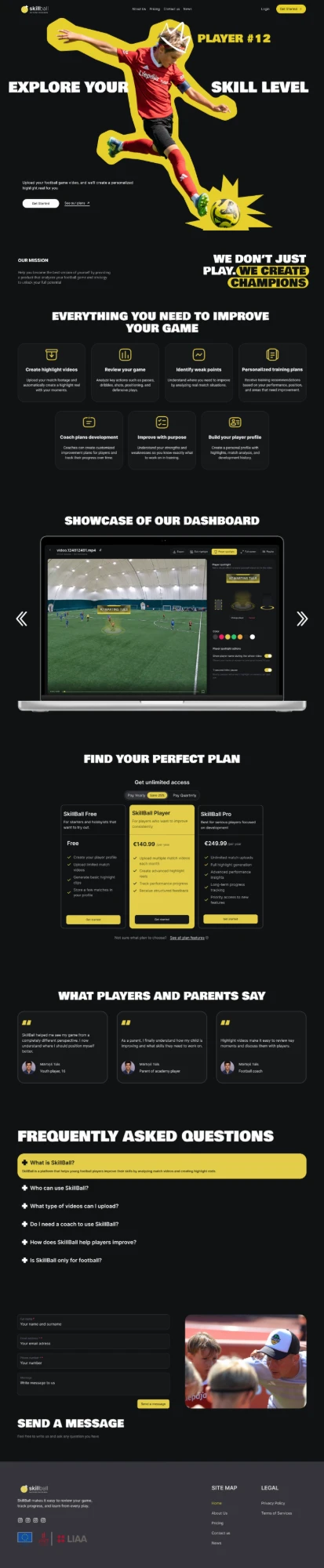
- 1The promiseA player cut out on yellow and the line Explore your skill level
- 2The missionWe don’t just play, we create champions
- 3FeaturesSeven cards, one for each thing it does
- 4The dashboardThe product itself, on a laptop
- 5PlansFree, Player and Pro, with the middle one in yellow
- 6TestimonialsA young player, a parent and a coach
- 7FAQThe first question open in yellow
- 8Contact formSend a message
- 9FooterCompany details, site map and legal links
The other pages